I upgraded my broadband, so why is the Wi-Fi still slow?
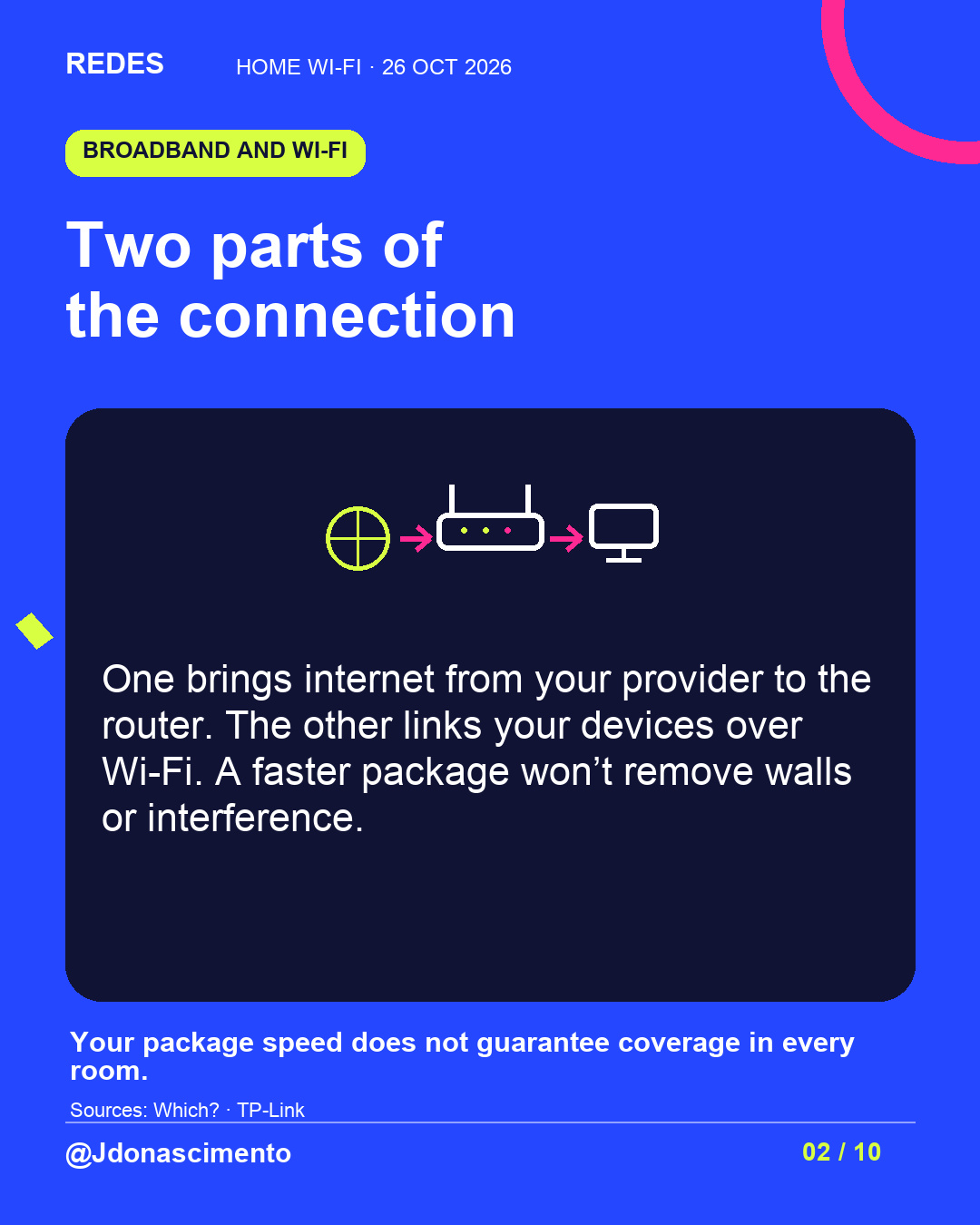
Your broadband package and the signal reaching each room depend on different parts of the connection. How to compare results and narrow down the problem before changing your package or equipment.
Read related article
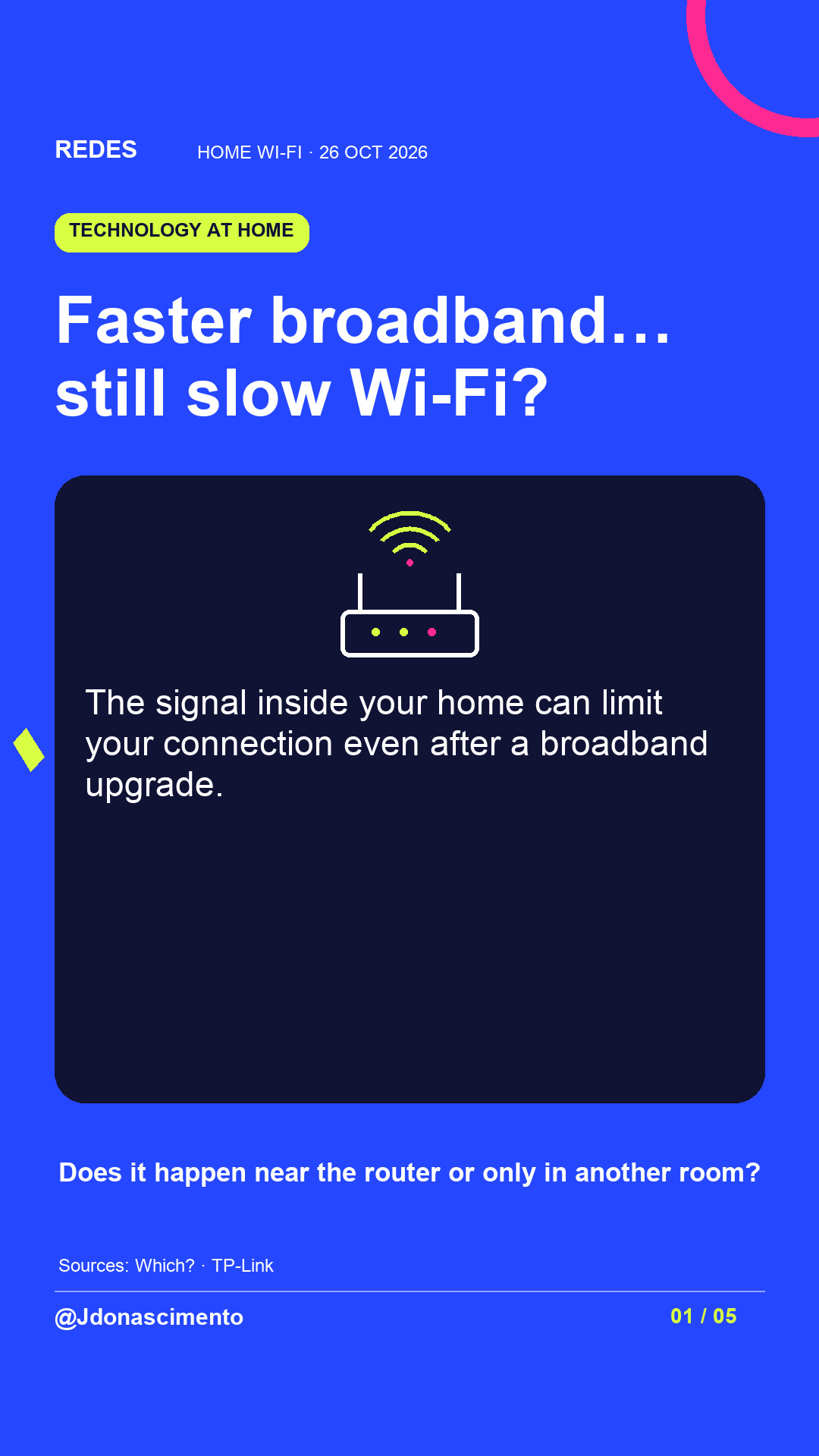
You upgrade your broadband, join a video call in the usual room, and it freezes again. Which part of the connection is struggling?
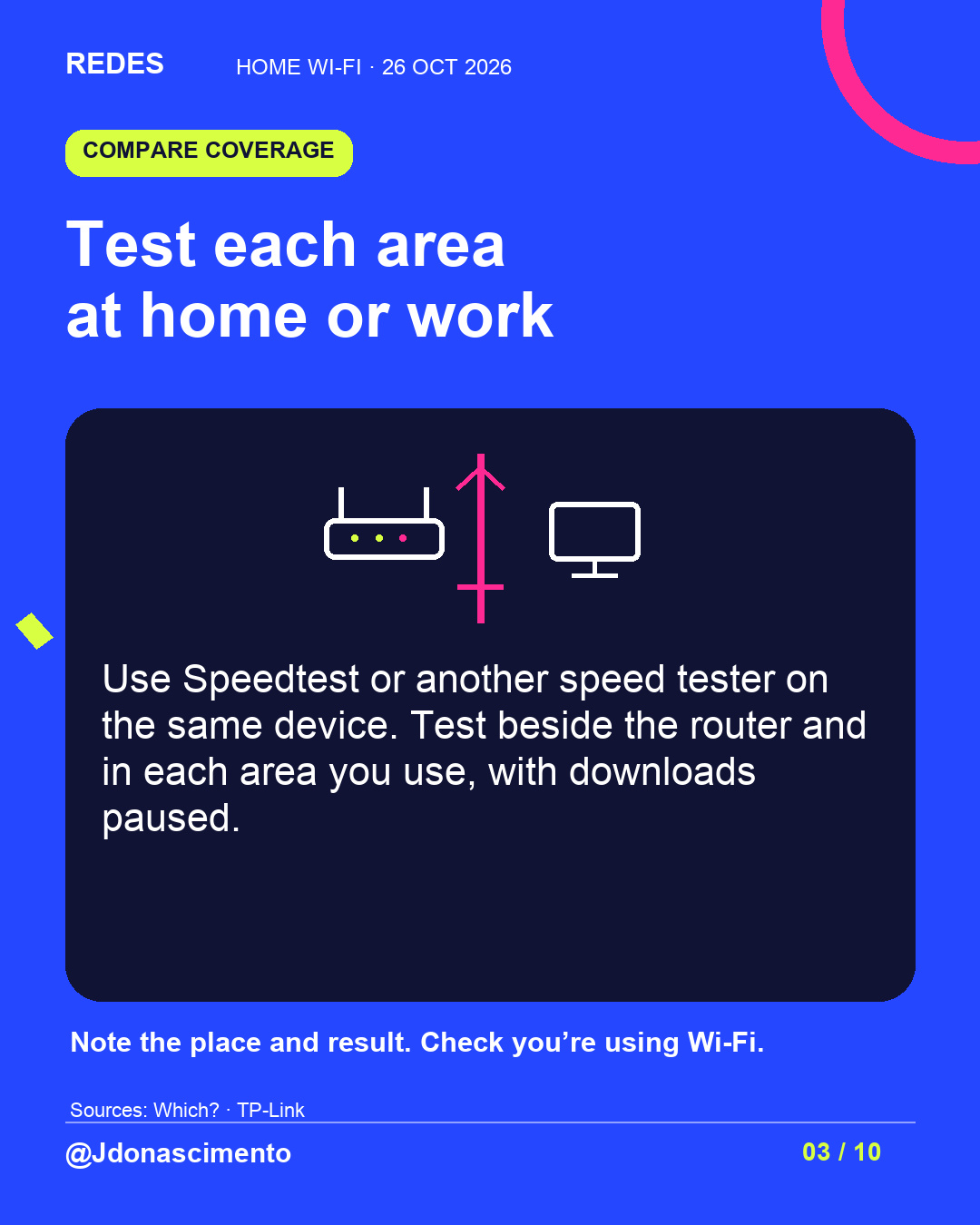
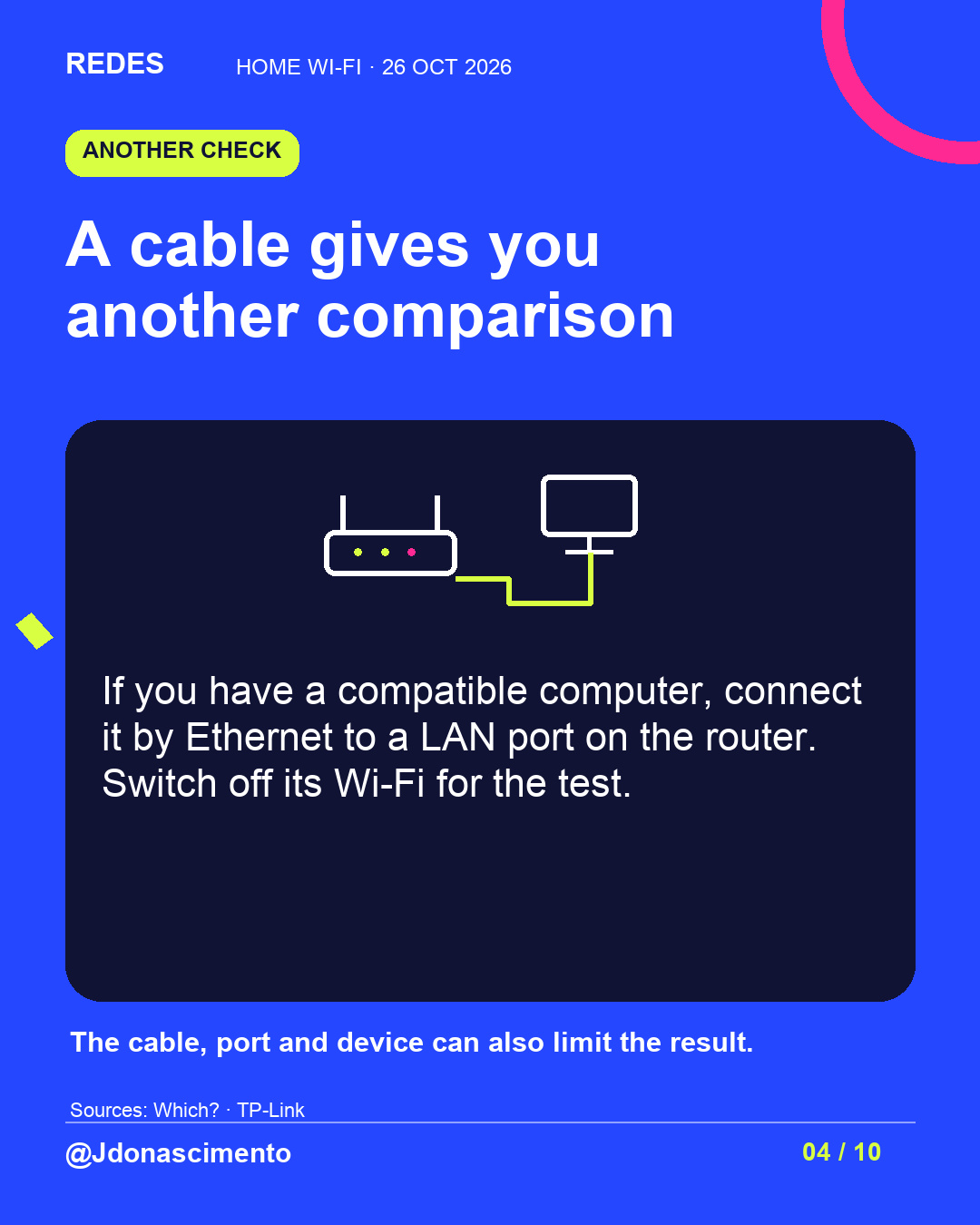
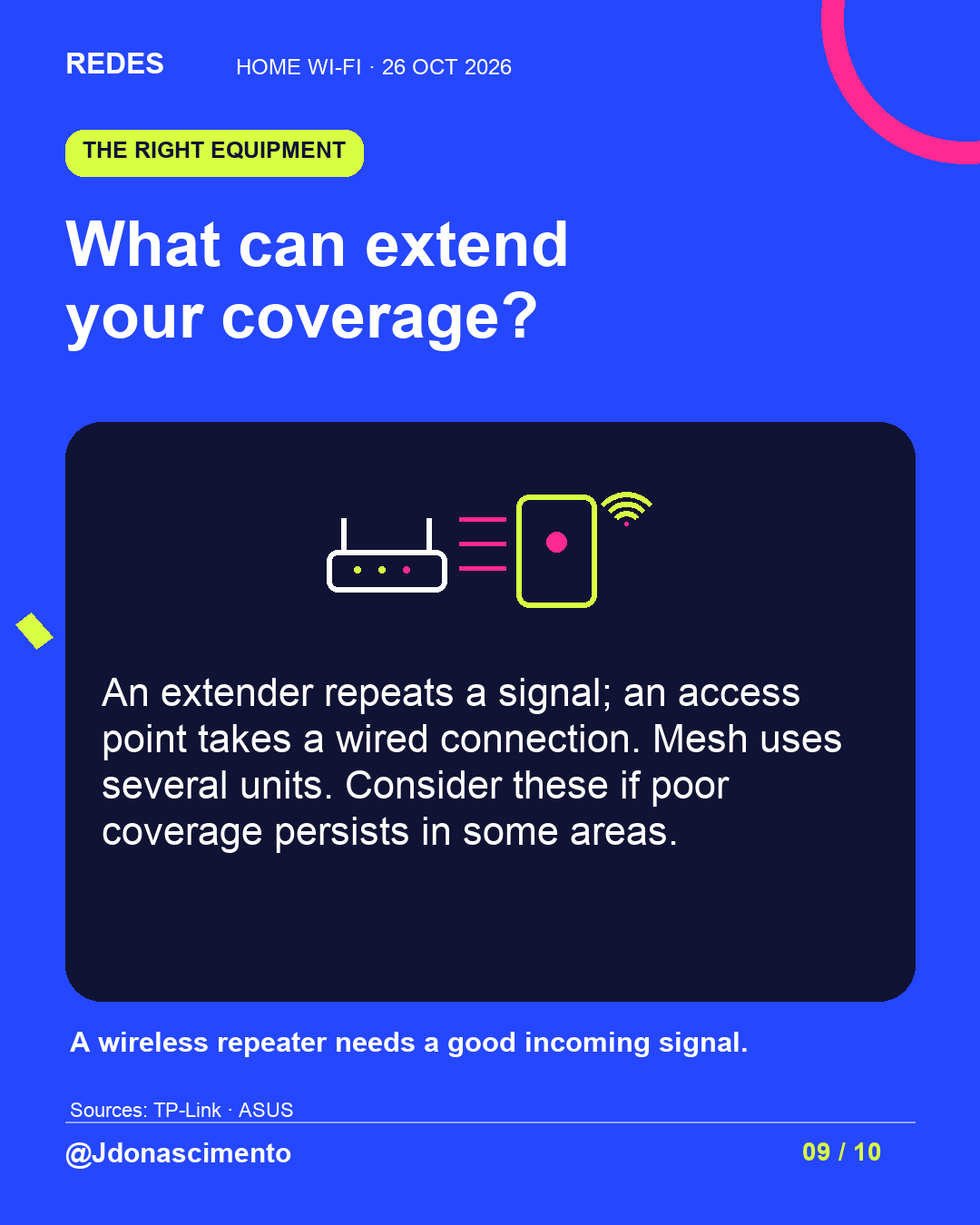
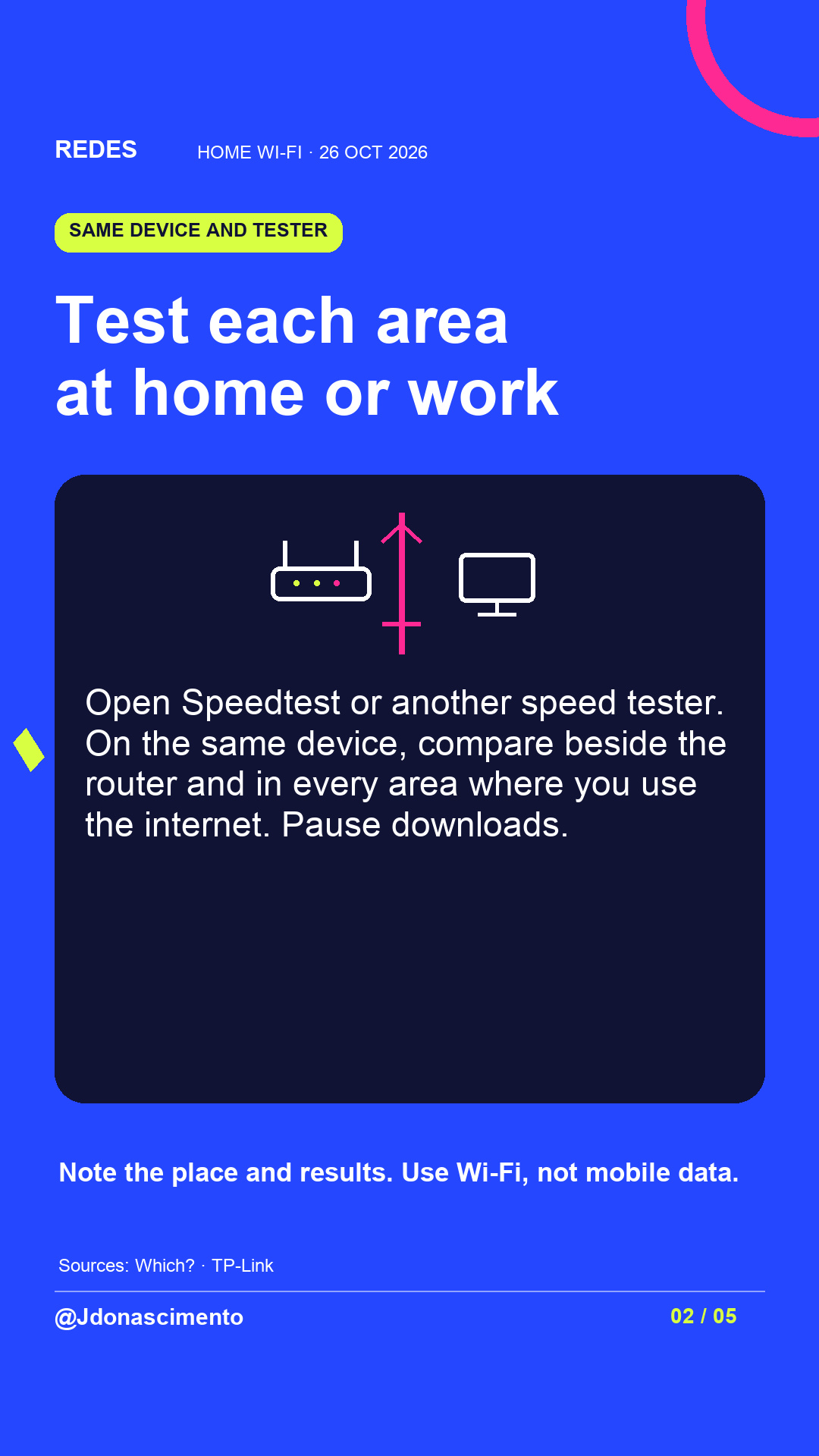
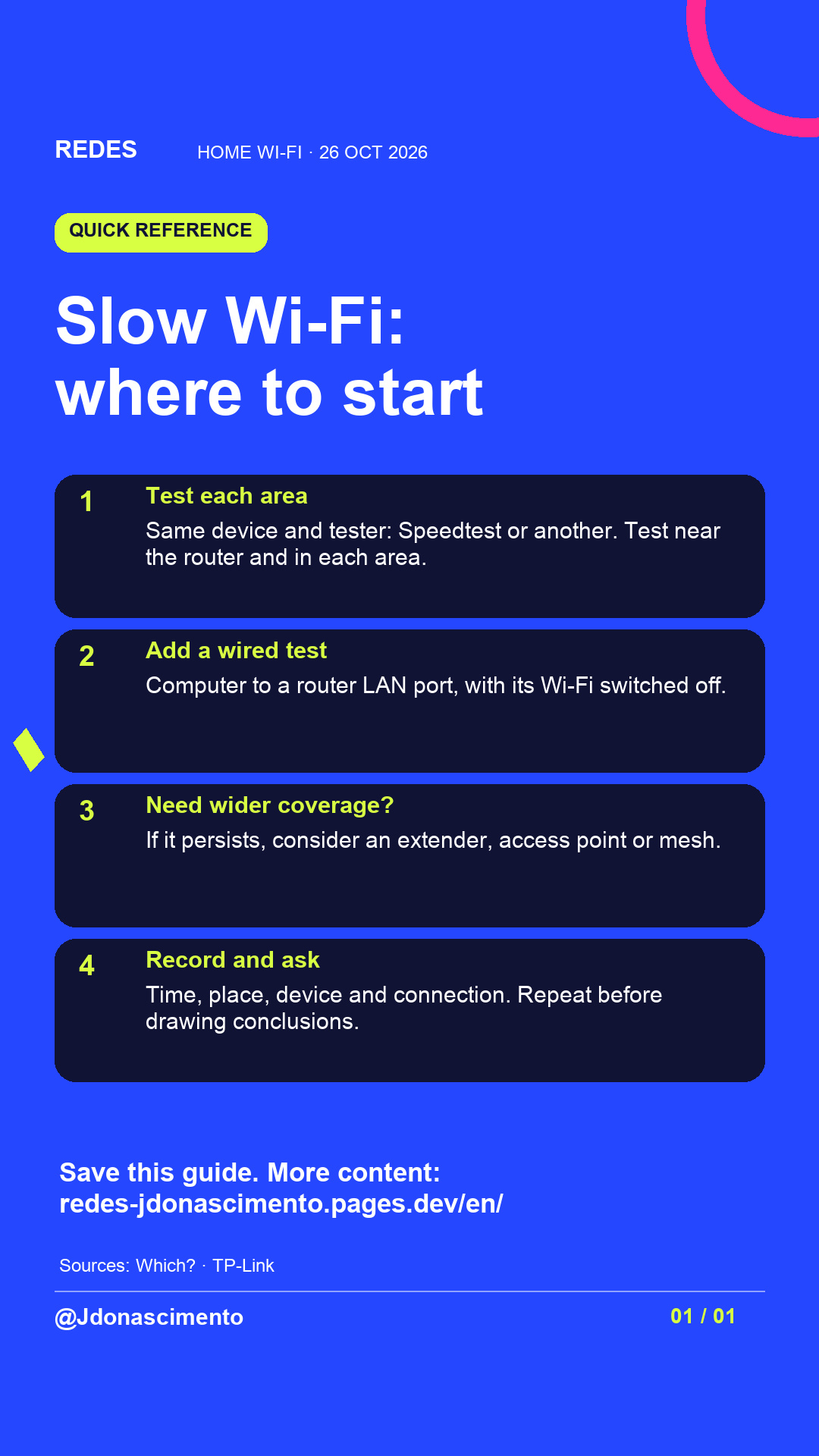
The connection reaching your router and the Wi-Fi around your home have different limits. Use Speedtest or another speed tester on the same device: test beside the router and around your home or office. Record the results to locate problem areas. A wired test, if possible, adds more information. If poor coverage persists in some areas, consider an extender, access point or mesh network.
Swipe to see what to check, and save the guide for next time. You can start investigating before changing your package.
Where in your home does the connection start struggling?
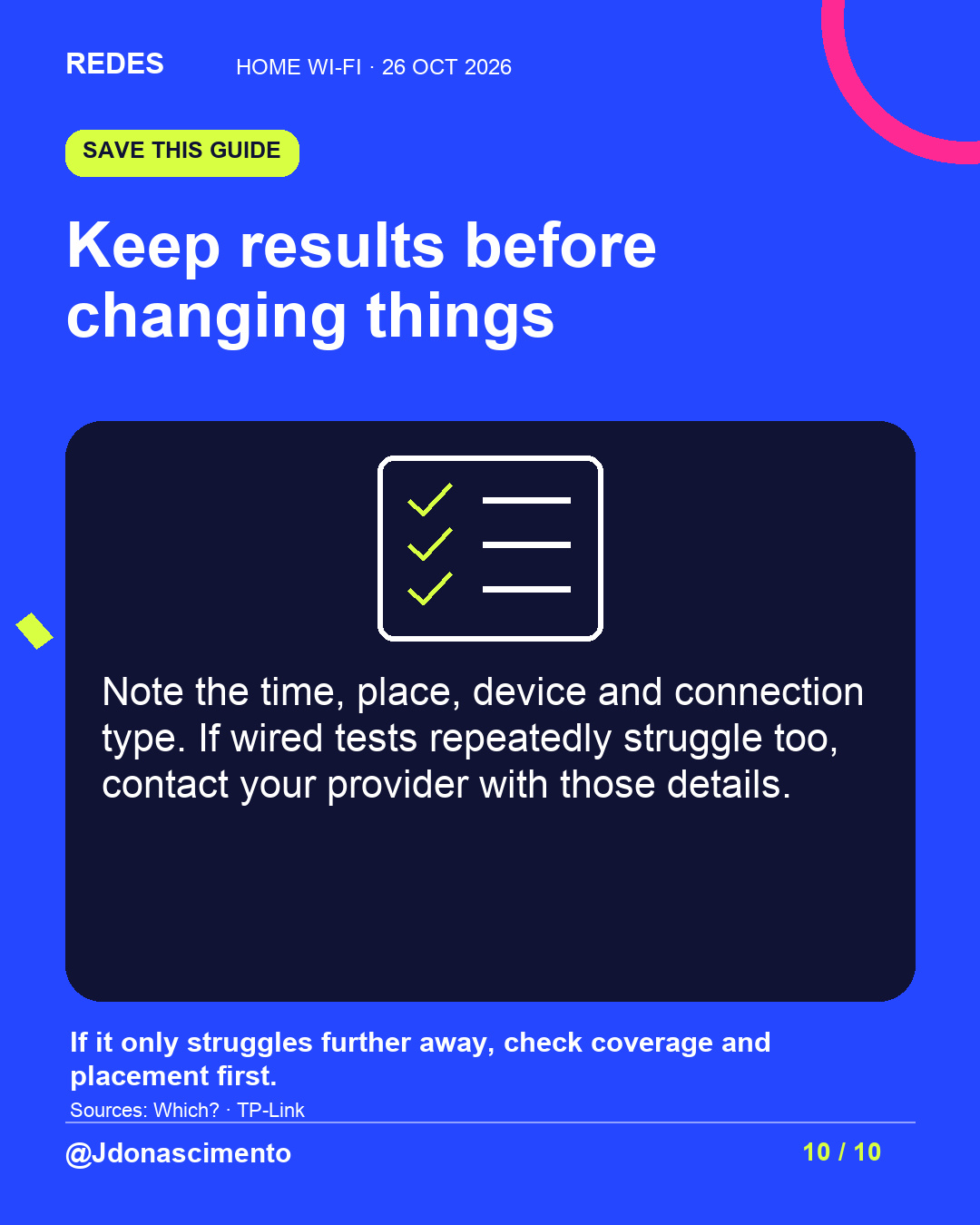
Sources: Which? (July 2026), TP-Link (2025–2026) and ASUS (May 2025). Links and scope are in the package’s source register.
For more content, visit: https://redes-jdonascimento.pages.dev/en/
#WiFi #EverydayTechnology #HomeBroadband #REDES
I upgraded my broadband, so why is the Wi-Fi still slow?
A video call can work beside the router and freeze in another room. A faster broadband package won’t remove the obstacles the signal meets inside your home.
Use Speedtest or another tester on the same device. Test beside the router and in each area of your home or office, pause downloads and note where performance drops. Add a wired test where possible.
If poor coverage persists after checking placement, consider an extender, a wired access point or mesh. A hub or switch on its own does not extend Wi-Fi. The guide explains the differences.
Explore the visuals in this post and save the checks for your next interruption. Which room gives you the most trouble?
Sources and technical reading:
Which? · 17 July 2026
https://www.which.co.uk/news/article/5-reasons-your-router-could-be-affecting-your-broadband-speed-aLbbm5w2uroe
TP-Link · placement and coverage · 17 April 2026
https://www.tp-link.com/us/support/faq/468/
ASUS · devices losing their connection · 6 May 2025
https://www.asus.com/ca-en/support/faq/1047930/
More on access points · TP-Link · 4 June 2026
https://www.tp-link.com/us/support/faq/1384/
NETGEAR · access point and switch · 7 July 2025
https://kb.netgear.com/000058849/What-do-I-need-to-know-about-using-my-NETGEAR-WAC510-access-point-in-router-mode
For more content, visit: https://redes-jdonascimento.pages.dev/en/
X
1/8 Faster broadband, but still slow Wi-Fi? The connection to your router and the signal reaching each room can have different problems. Follow the thread to see where to start.
2/8 Use Speedtest or another tester on the same device: beside the router and in each area of your home or office. Pause downloads, use Wi-Fi and note place and result. Keep conditions similar. A drop further away is a clue about coverage.
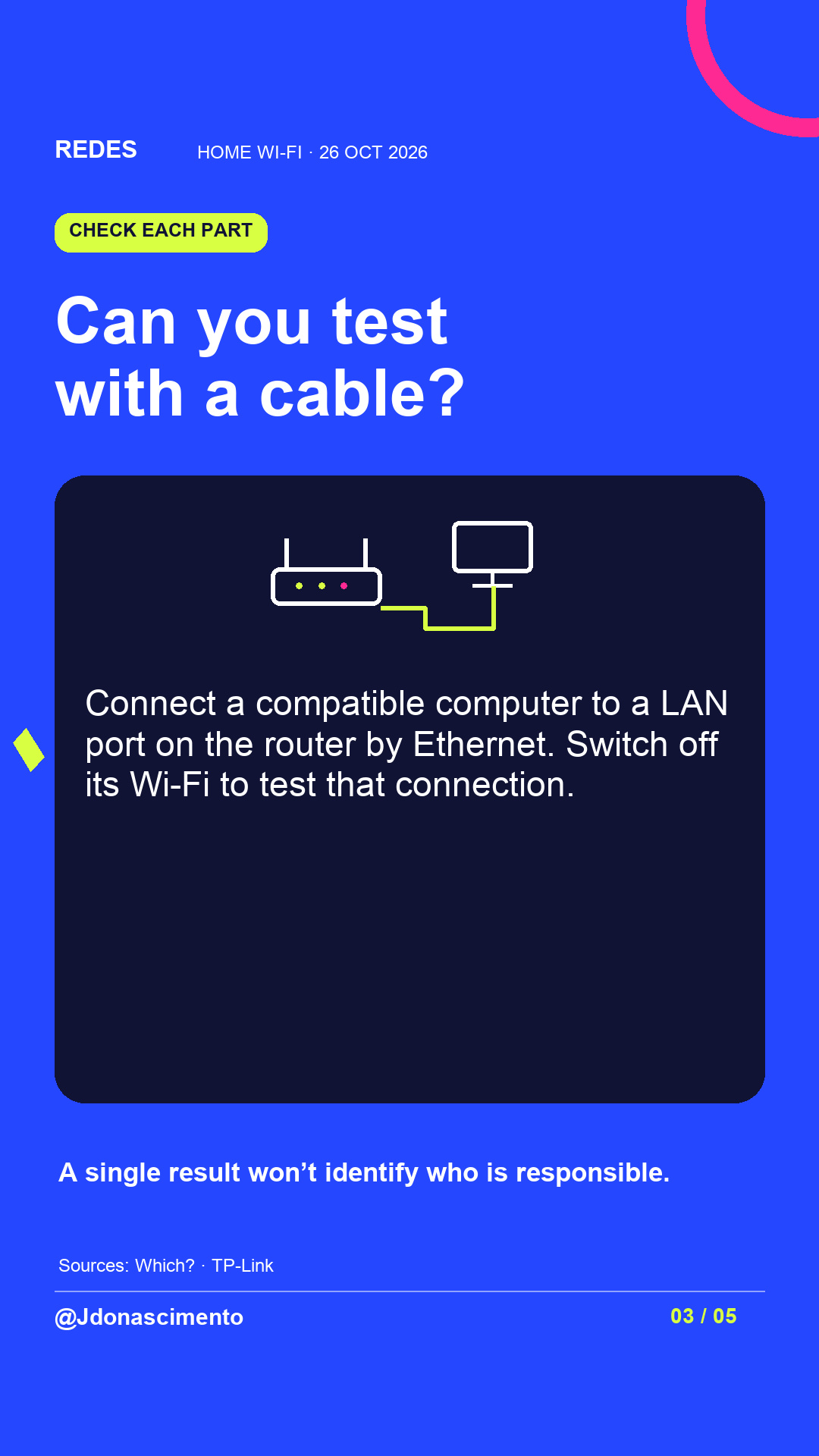
3/8 If you have a compatible computer, test by Ethernet to a router LAN port, with its Wi-Fi off. The device, cable and port can also limit the measurement. Source: https://www.tp-link.com/us/support/faq/3670/
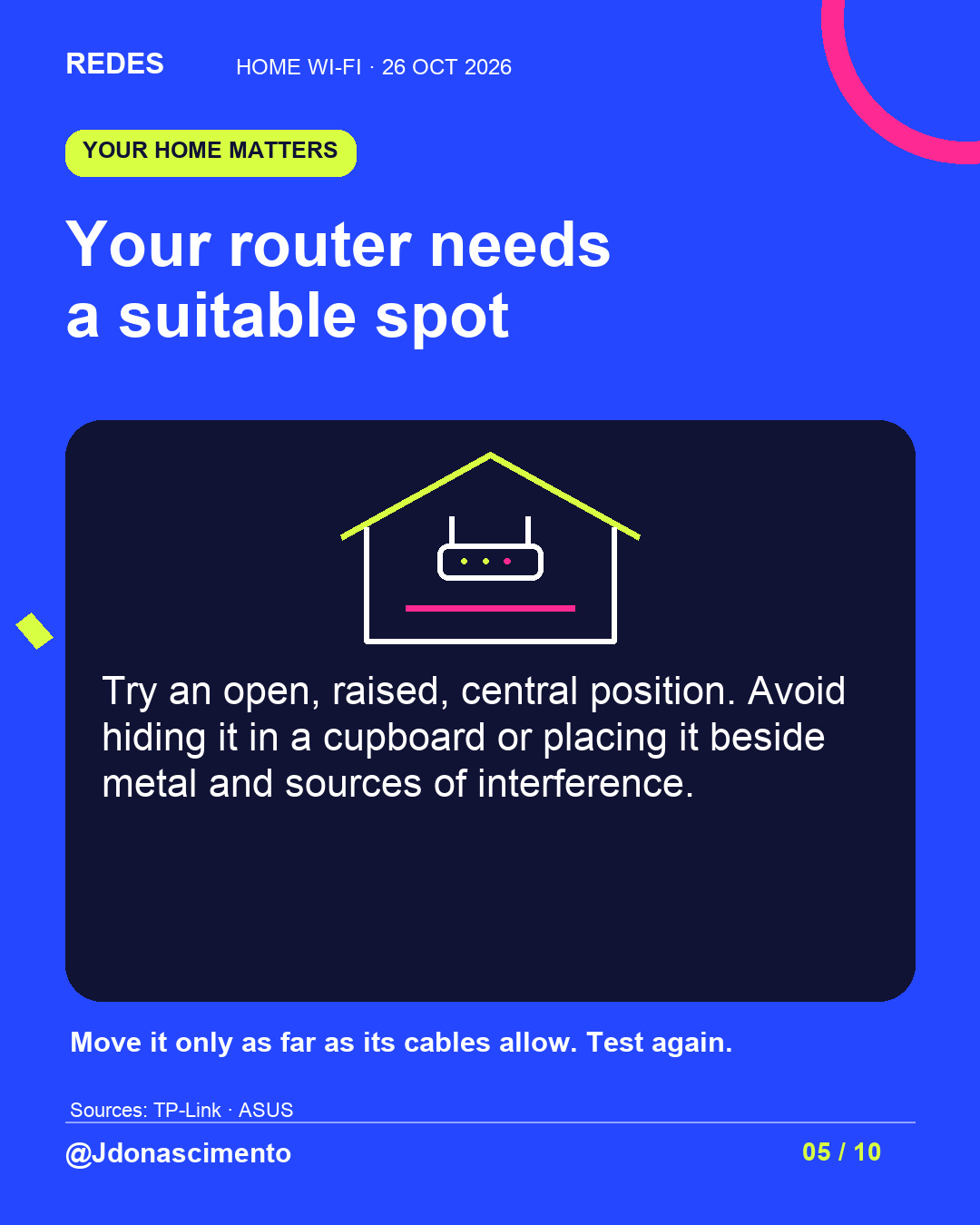
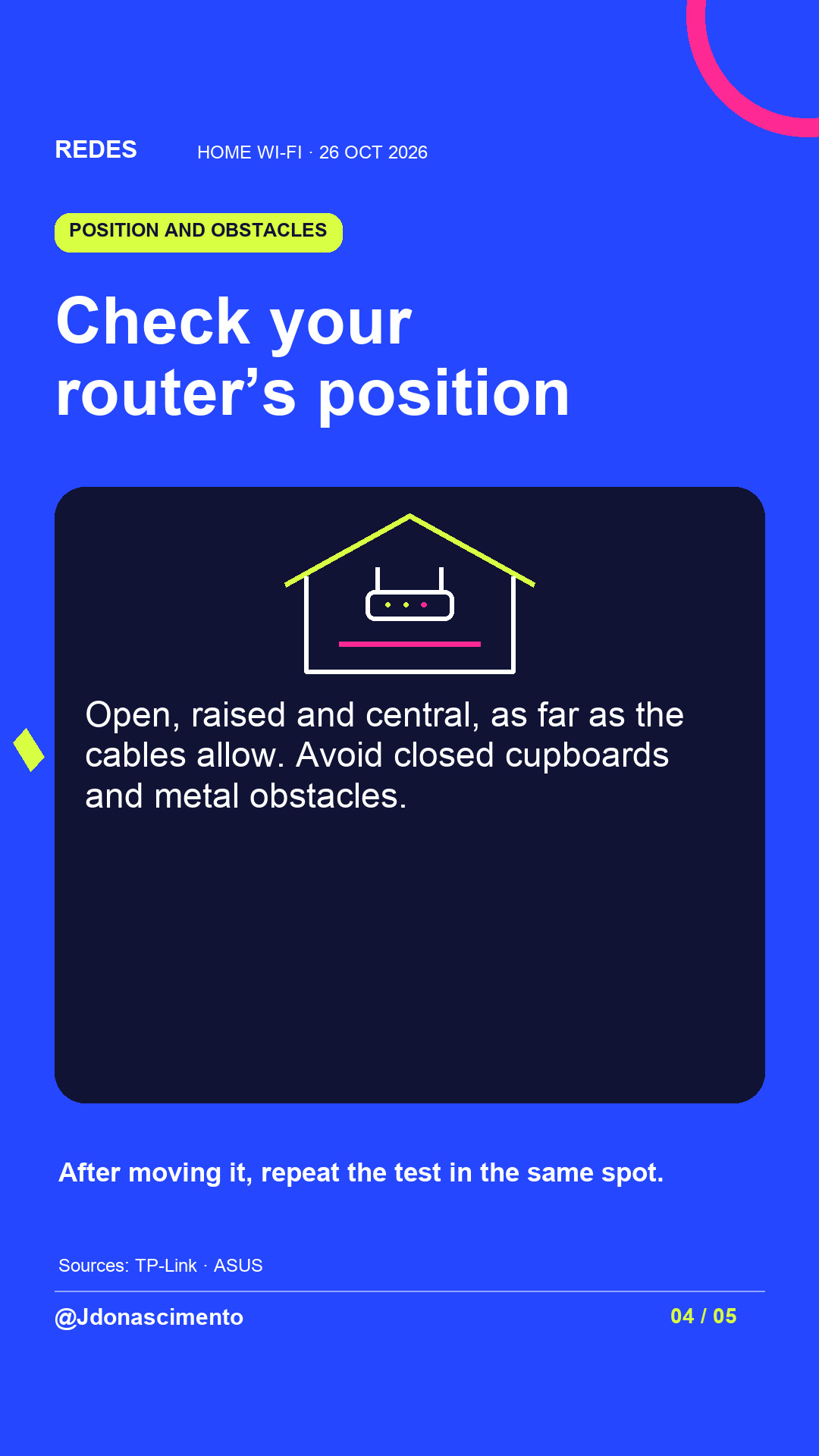
4/8 Try an open, raised, central router position, as far as its cables allow. Avoid closed cupboards and metal obstacles. Test again after moving it. Source: https://www.tp-link.com/us/support/faq/468/
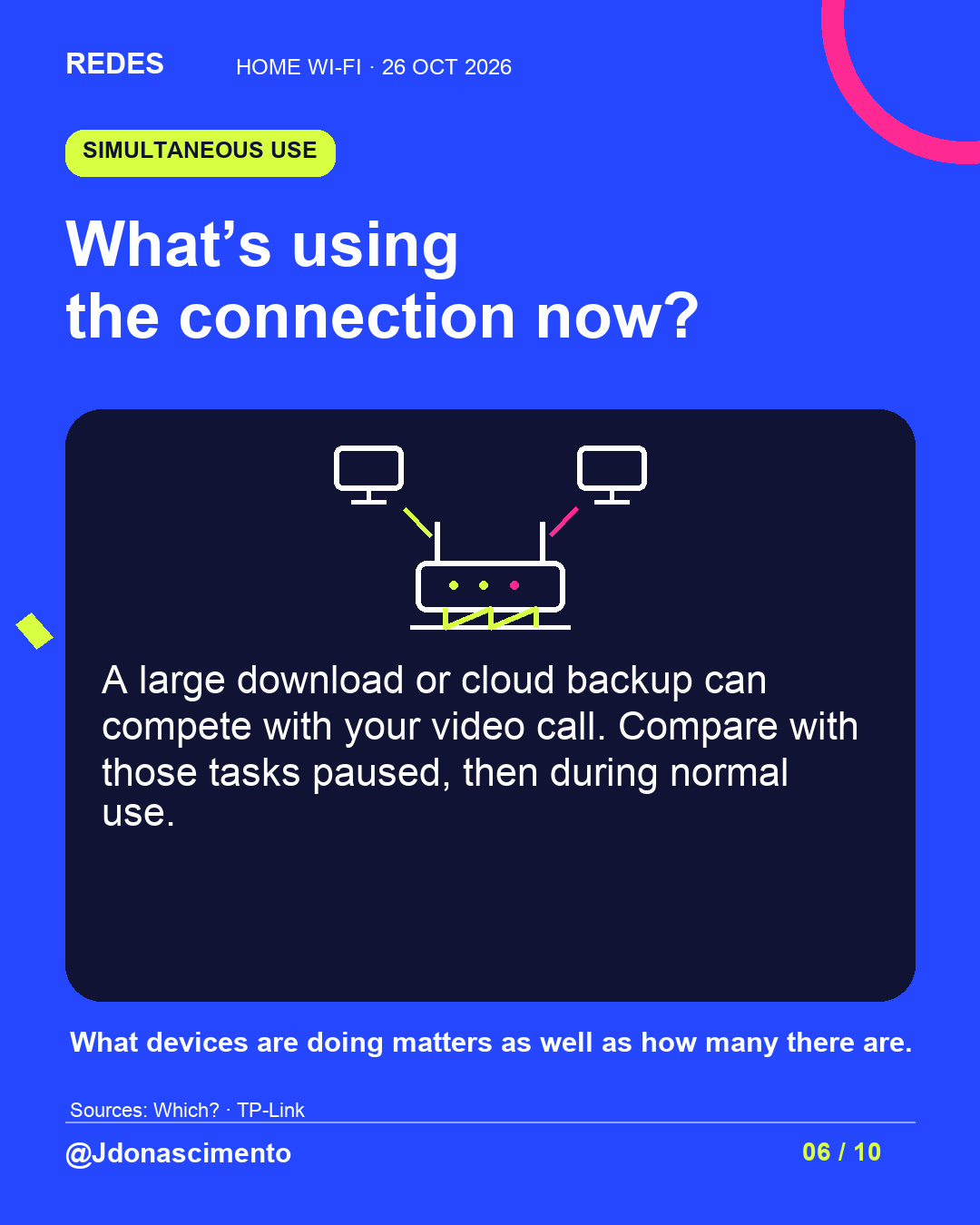
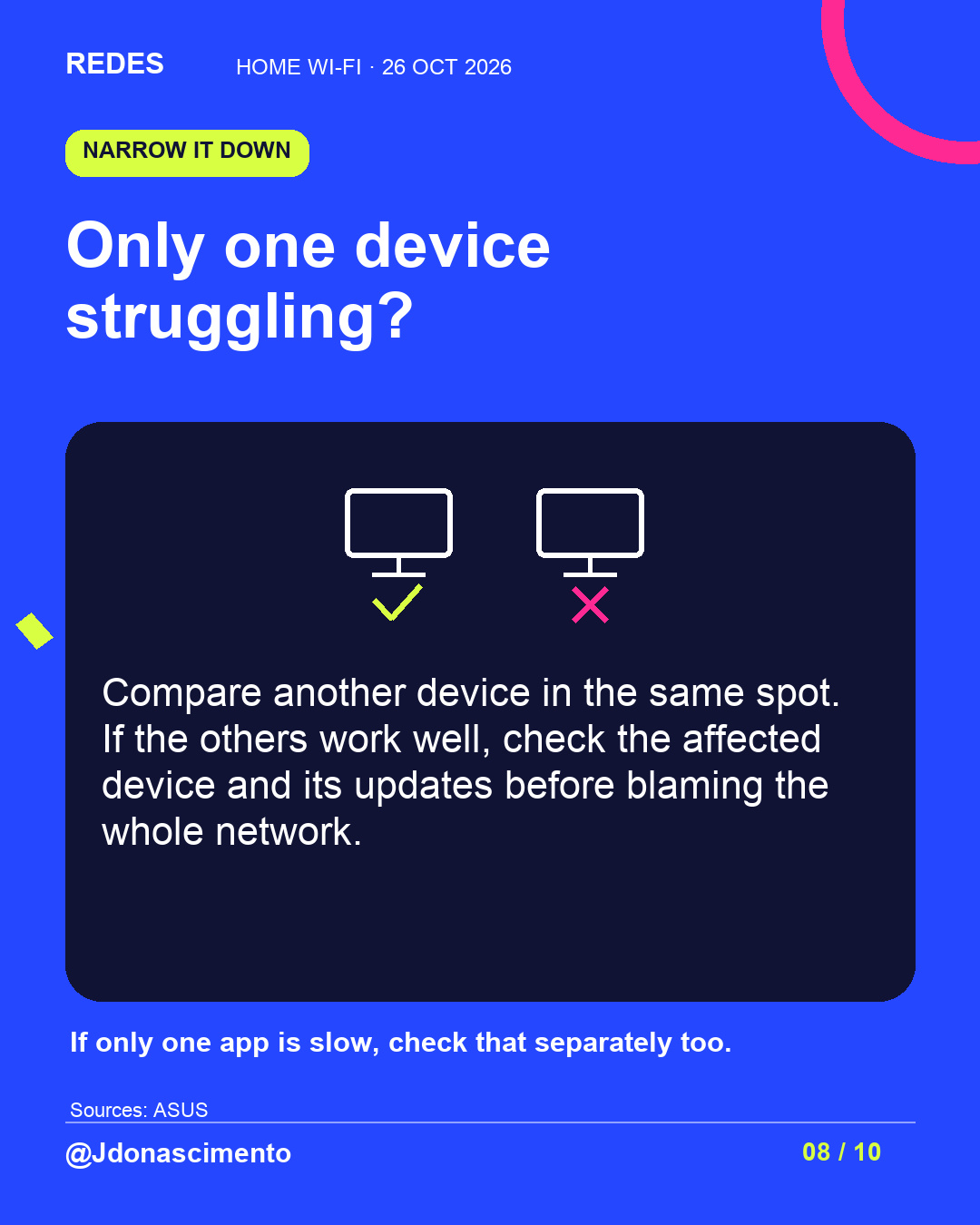
5/8 Check what’s using the network: a large download or backup can compete with a video call. If only one device or app struggles, check it separately. The number of connected devices doesn’t explain everything.
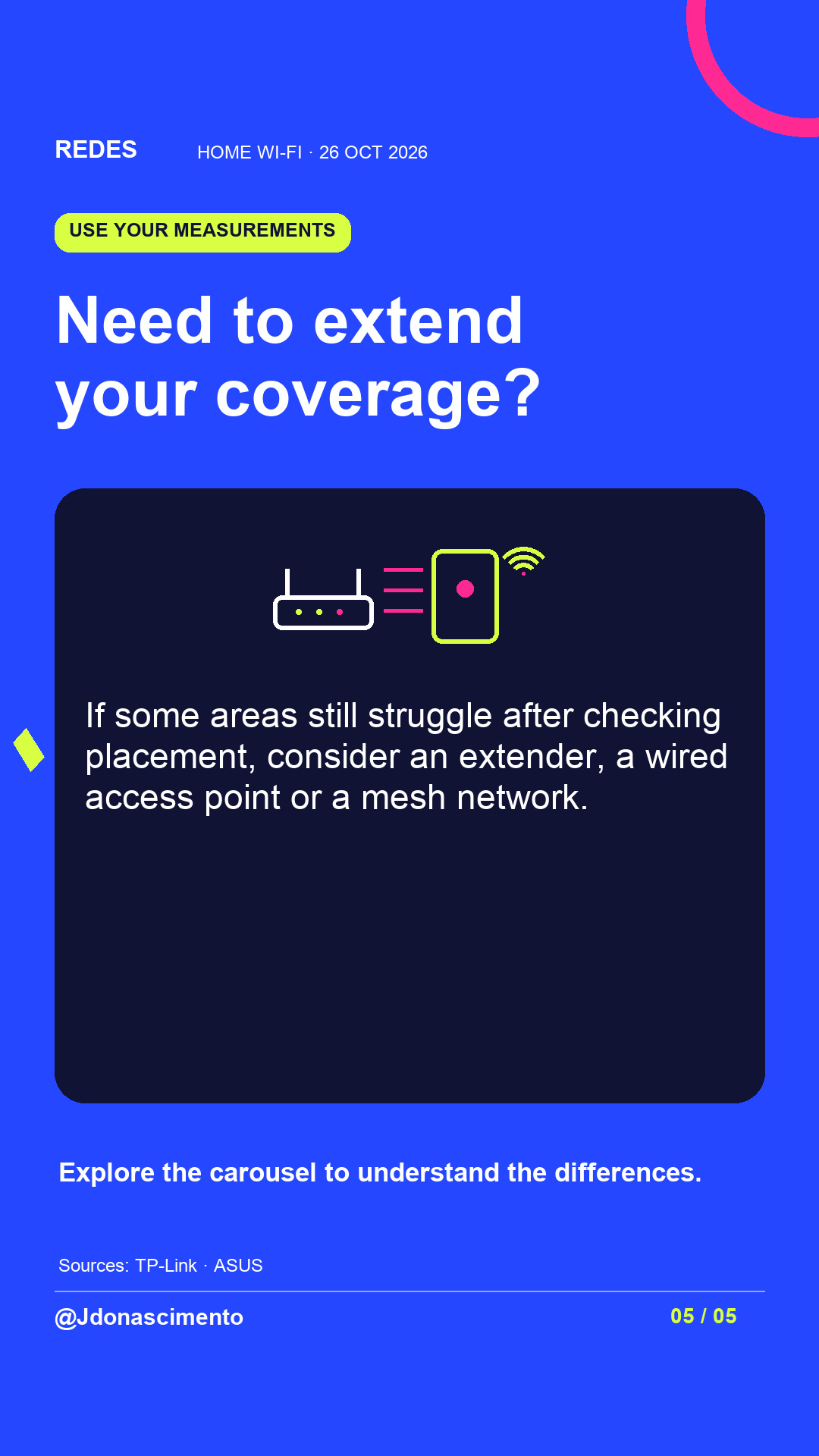
6/8 If poor coverage persists in some areas, consider an extender, wired access point or mesh. A hub or switch alone won’t extend Wi-Fi. Some compatible routers can work as access points.
7/8 Keep the time, place, device and connection type. Repeat at different times. If wired tests struggle too, contact your provider with those details. One measurement won’t prove who is responsible.
8/8 Explore the full carousel and save the guide. Where does your Wi-Fi start struggling? For more content, visit: https://redes-jdonascimento.pages.dev/en/